An agent’s file link expired. Is the original still there?
Find the stored artifact and its version before sharing again or regenerating it.

A colleague opens an agent’s file link and cannot access it. Resending the same address may not help; regenerating the file can produce a different document. Start with the stored artifact.
Buda Drive persists across sessions and sandbox restarts, while file-menu share links are time-limited. An expired access route alone does not establish that the source file was deleted. Check storage, version, preview, and sharing separately.
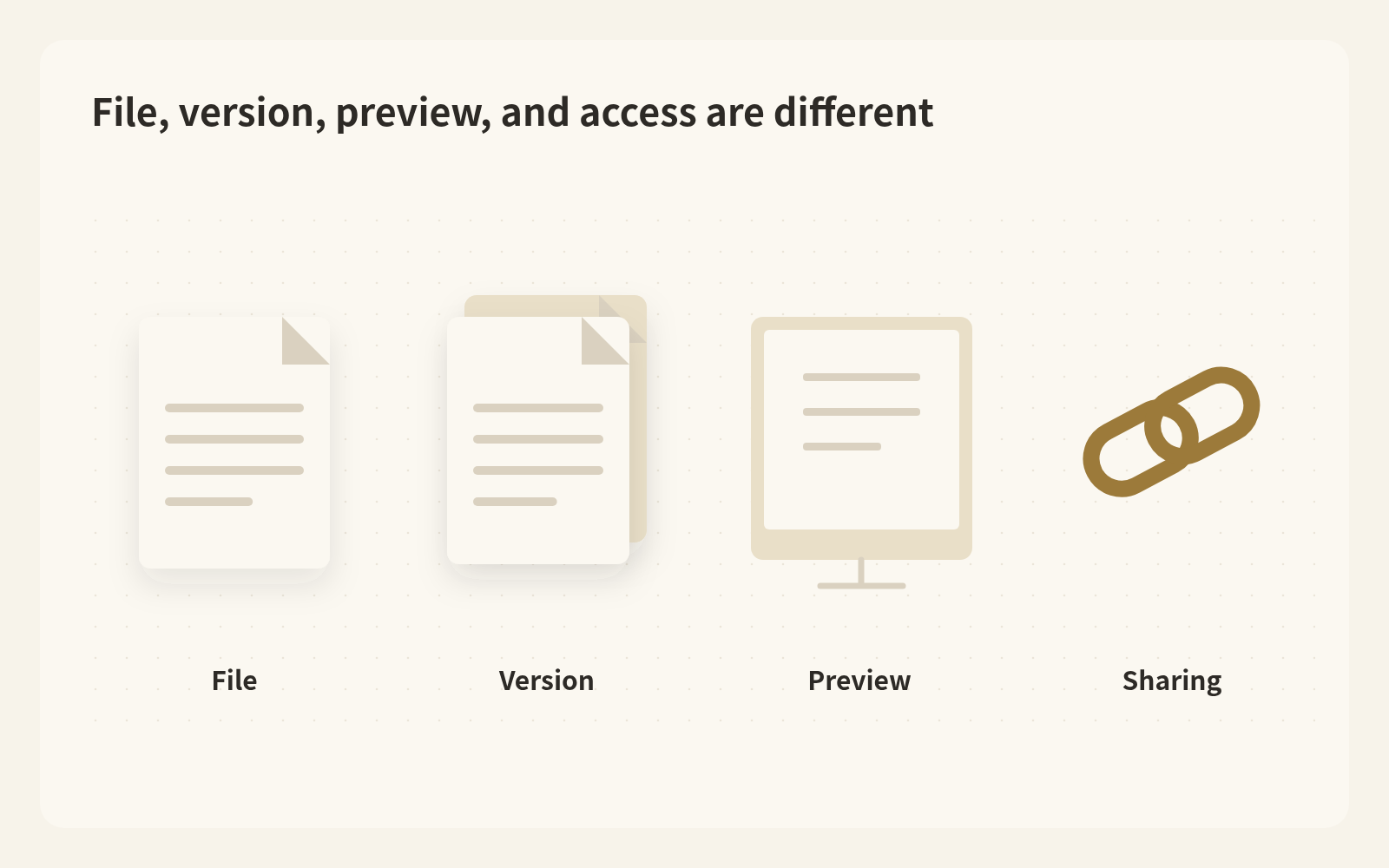
File, version, preview, and access are different
The file is content stored at a path. Its version determines what it contains now. A preview displays it; a share link grants an access route. An application preview may additionally depend on a running service and is different from sharing a static document.
A failed request can involve an expired link, access conditions, a moved file, or an unavailable service. Interpret errors in the context of the actual entry point. A single 401 or 404 does not prove deletion, and an old preview URL is not an archival copy.
Find the path in the original agent’s Drive
Open the agent that created the artifact and browse Files/Drive. Use the delivery path. If the conversation only gives a filename, inspect the original artifact and tool output to locate where it was written. Check project subdirectories before deciding it is missing.
Read or preview the file, then verify its title, important passages, attachments, and revision state. A familiar filename may contain later edits. To establish the delivered version, use available history, snapshots, or retained copies while protecting current content.
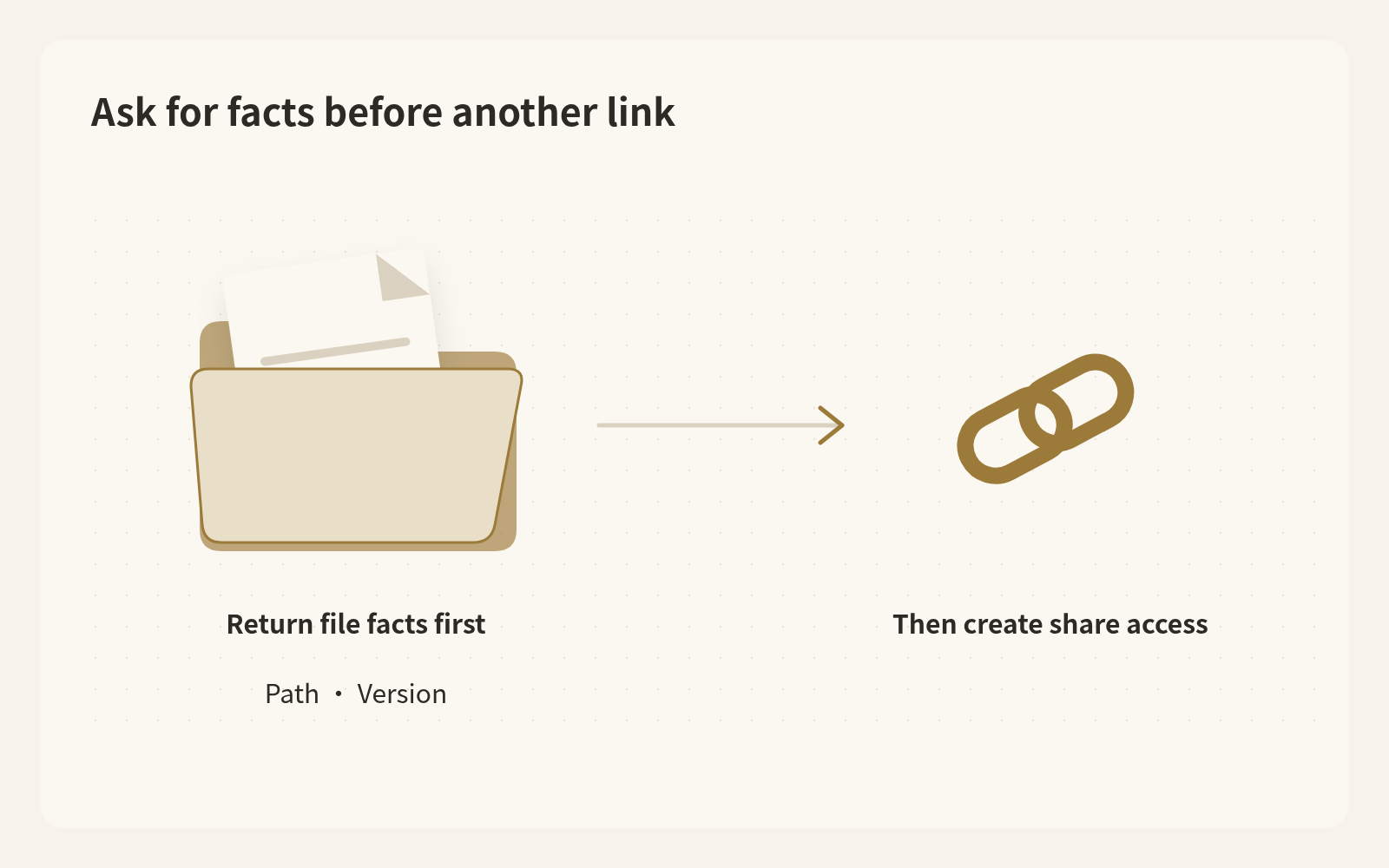
Ask for facts before another link
An instruction can be: “Check the original delivery path. Confirm whether the file exists, whether you can read it, and whether its current content matches the delivery. Do not rewrite it. Return the full path and a content summary; use a new time-limited share link if sharing is needed.”
If necessary, search related project directories and earlier tool outputs. Distinguish found, found-but-version-unconfirmed, and not-yet-found. Do not turn uncertainty into a deletion claim. For sensitive material, have an authorized owner confirm the recipient scope.
Share the verified file again
After verifying content, use Share from the file’s context menu in Files to generate a new time-limited link. Send it with a short version note so recipients stop forwarding the expired address. Where needed, have the recipient check the result from their actual access environment.
For an HTML application preview, separately inspect the service, dependencies, and preview authorization. Sharing its HTML file does not restore a running application. A durable website entrance requires the appropriate deployment and access workflow.
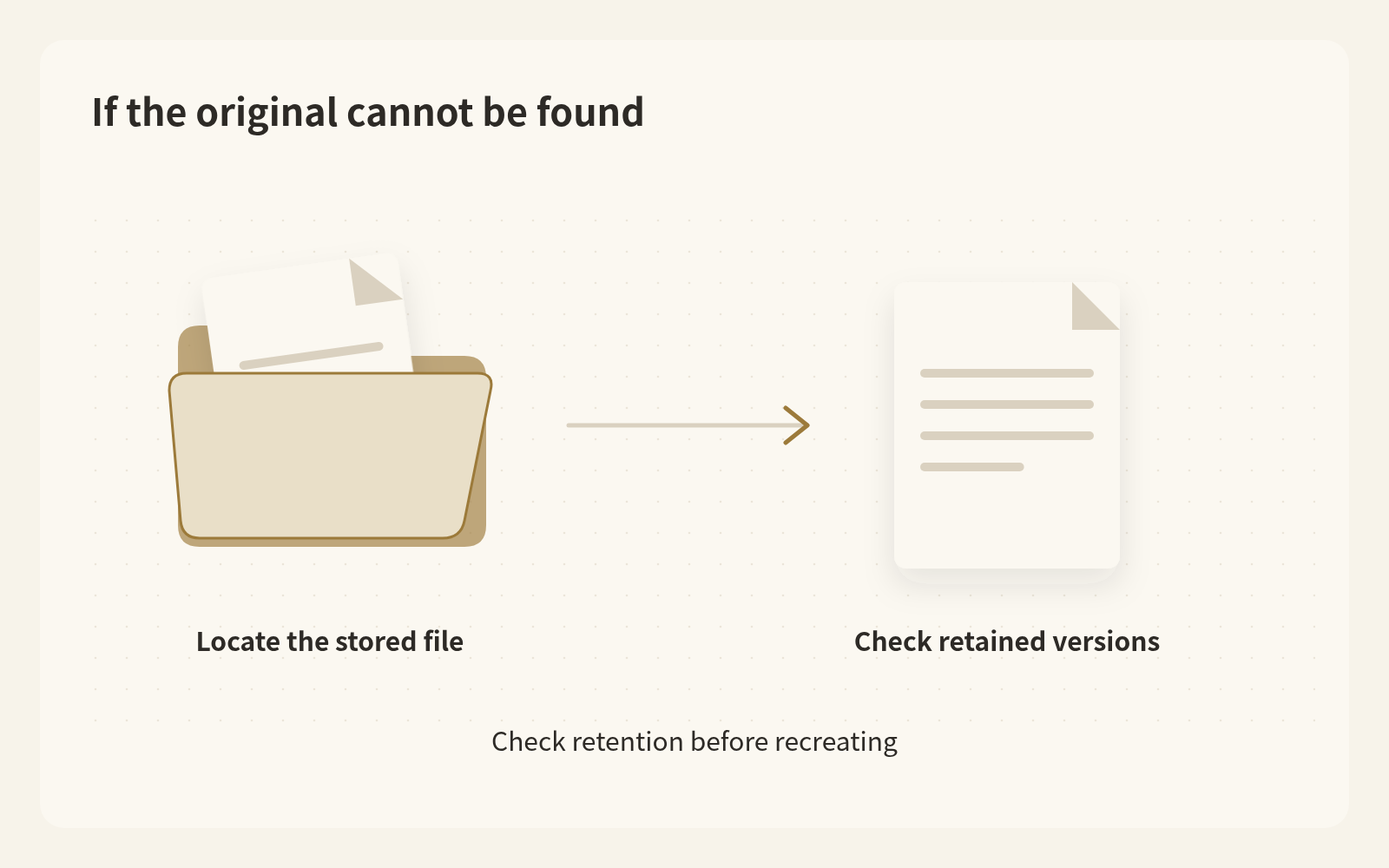
If the original cannot be found
Drive & Memory describes persistent, versioned storage. Check the history, snapshots, downloads, or project backups actually available. Preserve present content while comparing any earlier copy.
If no copy exists, regenerate from the original inputs and acceptance criteria. Label it as a rebuilt version and recheck data, conclusions, and attachments. Matching titles do not make it the recovered original. If ownership or access is unclear, ask an authorized person to investigate rather than trying to bypass restrictions.
Make the next handoff easier to recover
For important artifacts, record the storage path, purpose, version note, sharing method, and recipient confirmation. Keep approved deliveries separate from temporary drafts and retain appropriate confirmed copies or snapshots at important milestones.
Does link expiry delete the file? Sharing and persistent storage are separate; inspect the actual file. Can every old artifact be recovered? Recovery depends on retained content and access. Is regeneration recovery? It produces a new artifact requiring review. Locate the source before repeatedly sending another address.