Edit Word documents with reviewable tracked changes and comments
Choose the right editing path and check the document people will actually review.

The Word file is back, but the review is just beginning. Which sentence disappeared? Which condition changed? Where does that comment belong? If an agent delivers only a polished final version, the reviewer still has to compare two documents paragraph by paragraph. Better prose has not removed the verification work.
The DOCX Skill, from Anthropic’s skills repository, moves that work into the file itself: edits become visible revisions, comments point to the intended text, and structure and rendering are checked before handoff. The goal is a document in which a person can inspect, accept or reject specific changes—not another summary standing in for the actual revision.
Step 1: Install DOCX and choose the editing path
A DOCX file is a ZIP package containing XML and related resources. New documents can be created with the npm docx library. Existing documents follow an unpack, edit and repack route: docx-js cannot open them for editing. Pandoc provides a content-reading path. Recreating an existing file from extracted text can lose structure and review information, so agree on the intended output before processing it.
In Buda AI’s Marketplace, search for DOCX and verify the anthropics source. Then check the actual execution environment: Node’s docx package, Pandoc, LibreOffice and Poppler support different parts of the workflow. An upstream statement that a dependency is preinstalled does not prove it is installed in your Agent.
Step 2: Preserve the original and define the deliverable
Keep the original unchanged and use a separate working copy. Specify the permitted sections, changes that must remain tracked, comment author and output set. An adaptable instruction is: “Edit this existing Word document without replacing the original. Track textual changes under the agreed author, anchor comments to the relevant passages, preserve structure and return the revision plus a change summary. Render the result and report anything that still needs manual checking.”
A summary helps navigation but cannot substitute for revisions inside the file. Decide separately whether a clean accepted copy is needed; generating it does not mean the reviewer has accepted the changes.
Step 3: Make textual edits visible as revisions
Word splits text into runs for formatting and revision metadata. A phrase visible on screen may span several runs and fail a simple text replacement. The Skill supplies a merge-runs helper for adjacent identically formatted runs. Changes still need careful placement so formatting and surrounding document structure survive.
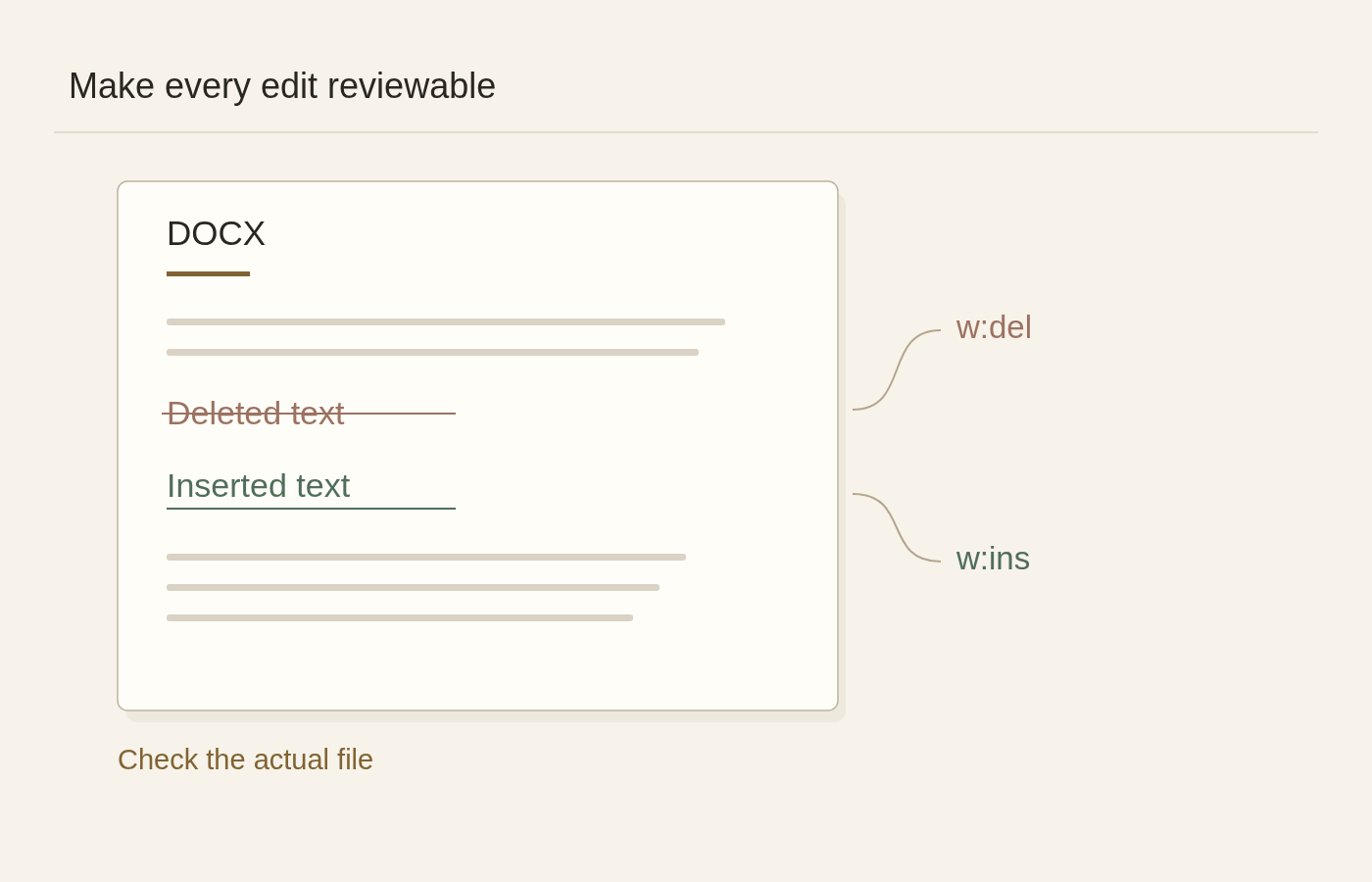
Tracked insertions and deletions require the appropriate XML containers and author/date/id attributes. A redline check against the original can detect changed text outside those containers. Without it, an accepted view can look correct even though part of the edit bypassed review.
Step 4: Anchor comments to the intended text
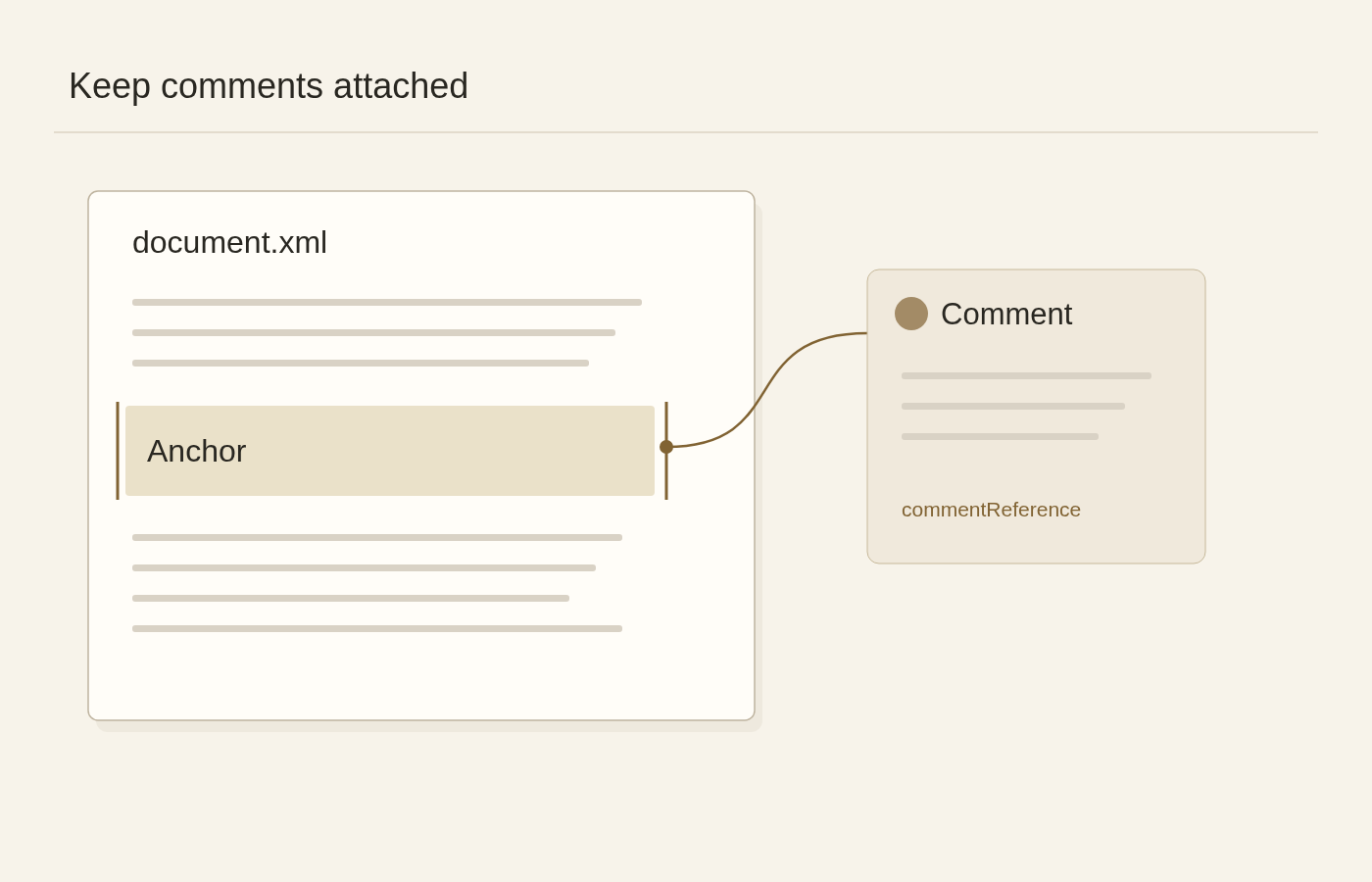
The comment helper creates the linked comment files and returns range/reference markers for the document XML. Until those markers are placed around the intended text, a comment can exist in the package without appearing to the reviewer. Check both that the comment is visible and that it points to the passage it discusses.
This distinction also prevents a misleading handoff: “comments added” is insufficient if they are not discoverable in Word. Author names and the requested review scope should be confirmed before generating that metadata.
Step 5: Validate structure and inspect the pages
Use the supplied validation path against the original and, for redlining, the named author. Structural validation checks package rules; it does not decide whether the revision is sensible or every page is well composed. Render to PDF with LibreOffice and inspect page images for tables, headings, numbering, breaks and comments where supported. Also open the DOCX in the reviewer’s intended application to check interactive revisions.
Deleting a paragraph mark is more than deleting its words. Some accepted-text conversions leave empty numbered paragraphs even when Word would join them. An empty bullet in a derived view is therefore a reason to inspect paragraph deletion markup, not immediate proof that the source DOCX is defective.
Hand off a document people can review
Return the preserved original, tracked revision, a concise change summary and any requested clean or PDF copy with clear labels. List unresolved rendering or application differences instead of treating successful file creation as acceptance. Human review decides which revisions survive.
Use Buda to build this file-processing workflow around an explicit output contract. The upstream DOCX procedure documents the helpers and their constraints; check its current files before running commands. Start with a document you are permitted to process and inspect the actual artifact before extending the workflow.
Start with a Word document that needs a real review
Open the DOCX Skill page, then search for and install it for an Agent in Buda AI’s Marketplace. Provide a document you are authorized to process, define the editing scope, revision author and output formats, and preserve the original. Review the actual changes and comments in the returned file.