Introducing Buda Connector: Give Your AI Agents a Computer They Can Actually Use
Buda Connector lets AI Agents work on your computer or server with the real files, tools, browsers, and project environments your team already uses.

AI Agents can write code, analyze documents, and plan complex work in the cloud. But the environment where the work needs to happen is often somewhere else.
Your repository is on a laptop. Your dependencies are already configured on a workstation. Your internal tools run on a company server. The files you need are inside a real directory, not a blank cloud sandbox.
That gap creates an awkward handoff: the Agent explains what to do, then a person goes back to the computer and does it.
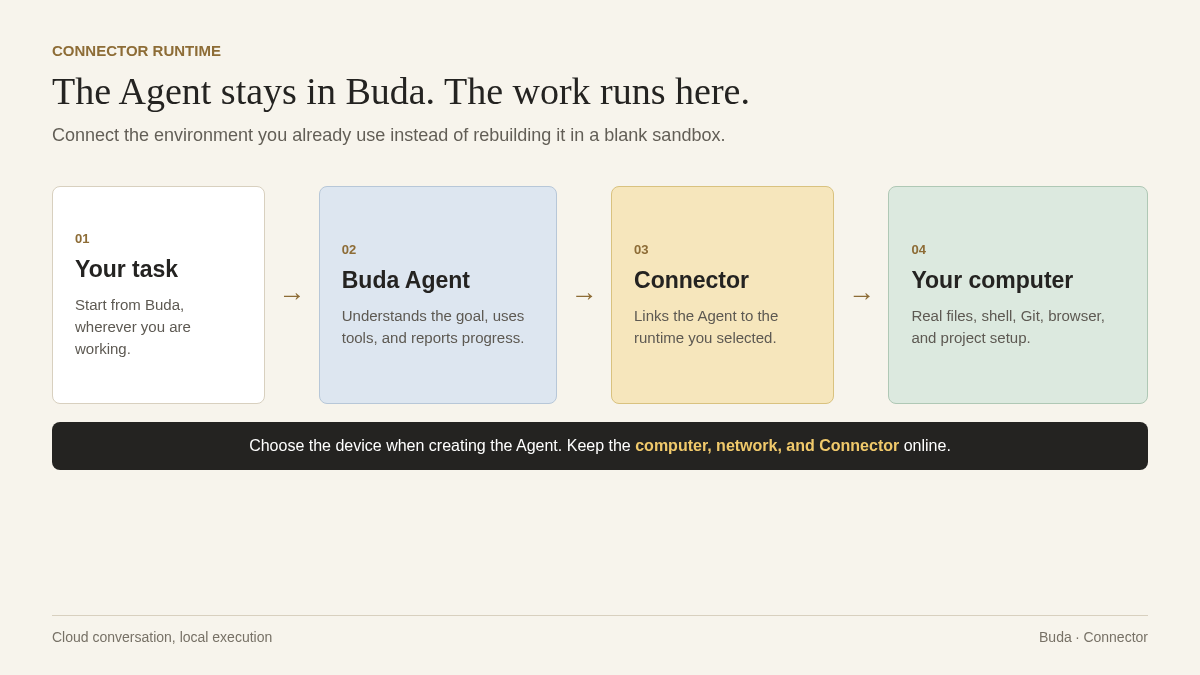
Today, we're introducing Buda Connector. It connects a computer to your Buda Space and lets you select that computer as an Agent's runtime. The Agent can then work with the files, tools, and project environment that already exist on that machine.
From cloud instructions to real execution
An Agent is most useful when it can move beyond recommendations.
If a task depends on a local codebase, an installed tool, or a specific company environment, copying instructions between the cloud and your computer adds friction at every step. Context gets lost. Commands get repeated. Results still need to be moved back by hand.
Buda Connector removes that manual relay.
Once a computer is connected, an Agent running there can use:
- the shell and command-line tools installed on the machine
- the local filesystem and working directories
- existing code repositories and Git configuration
- the machine's real project dependencies and development environment
- browser tools when Chrome, Chromium, or Microsoft Edge is installed
When the Agent creates a file, it exists on that computer. When it reads system information, it reads the real machine. When it runs a command, you can follow the execution from Buda.
The conversation stays in the cloud. The work happens where the environment already lives.
A computer becomes a runtime for your Space
Connector is not a remote desktop. It does not turn a computer into a screen that everyone controls.
Instead, it registers the machine with a Buda Space as an available Agent runtime. When creating an Agent, you deliberately choose which connected device it should use. That Agent then performs its work on the selected machine while the computer and Connector remain online.
This makes an existing environment reusable at the team level. A configured workstation or company server no longer has to remain an isolated resource known only to the person who set it up. The Space can assign Agent work to that environment when a task actually depends on it.
You still decide:
- which computer joins the Space
- which Agent runs on that computer
- which tasks the Agent receives
- when the connection should stop
- when the device should be removed
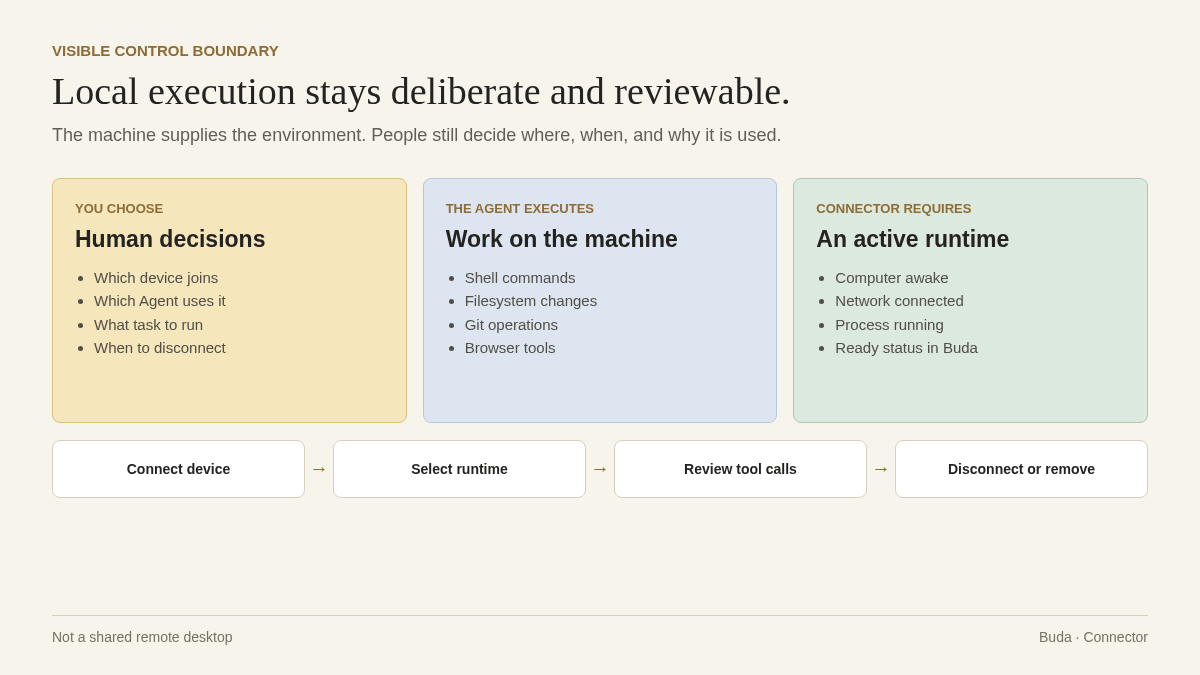
The machine provides execution capacity. People retain control over where and why it is used.
Connect a computer in a few steps
Before starting, the target computer needs:
- Node.js 24.18 or later
- Network access to
buda.im - A terminal process that can stay running while the Agent uses the machine
Then open the Space that should use the computer and go to Settings → Agent Connectors.
Click Add connector. If an installation command is not available yet, generate a token first. Buda will provide a complete command for that Space and device.
Copy the command, open a terminal on the computer you want to connect, and run it there. Keep that terminal process open.
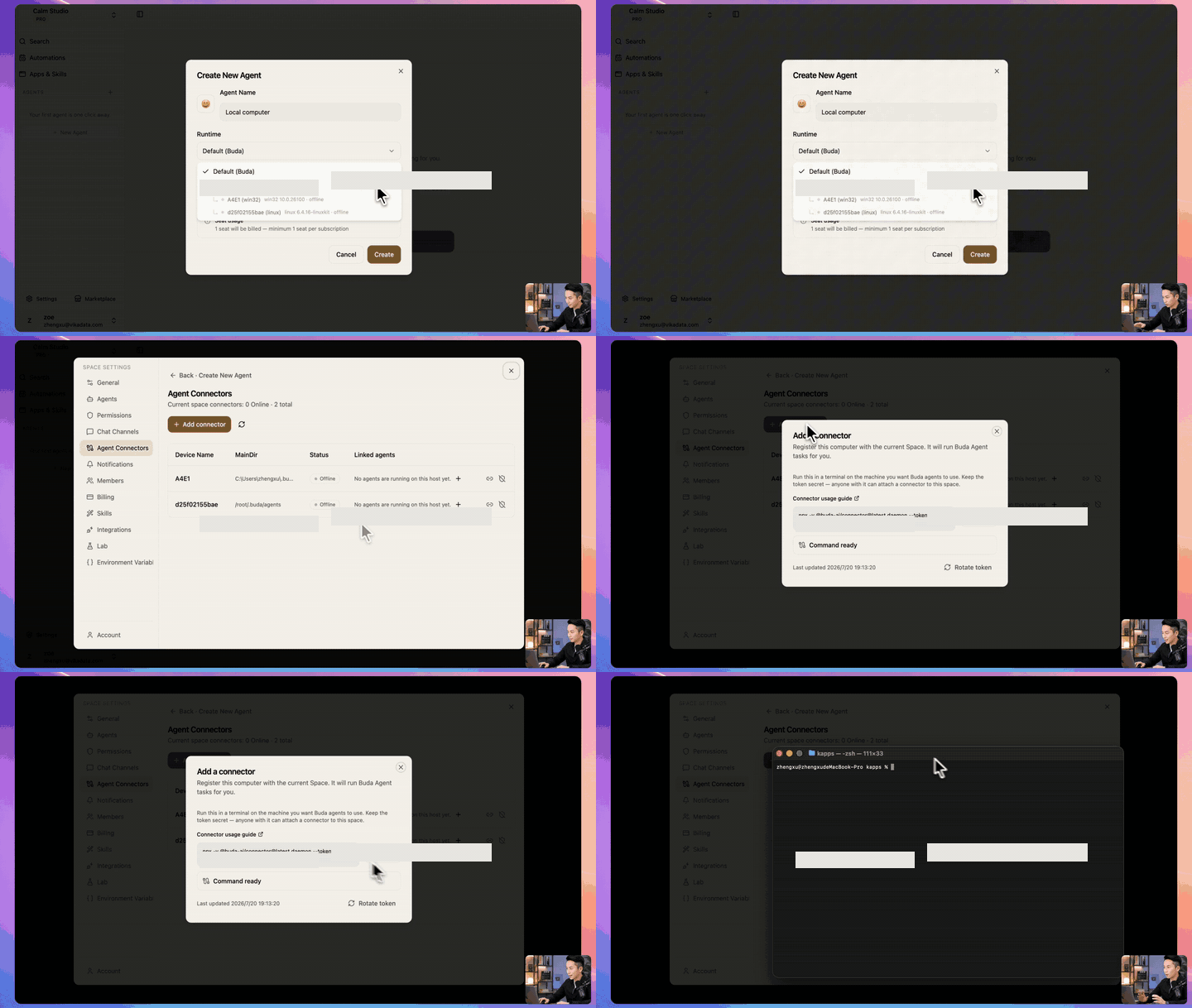
Back in Buda, the status will move from Device found to Connector ready. The computer is available for Agent work only after it reaches the ready state.
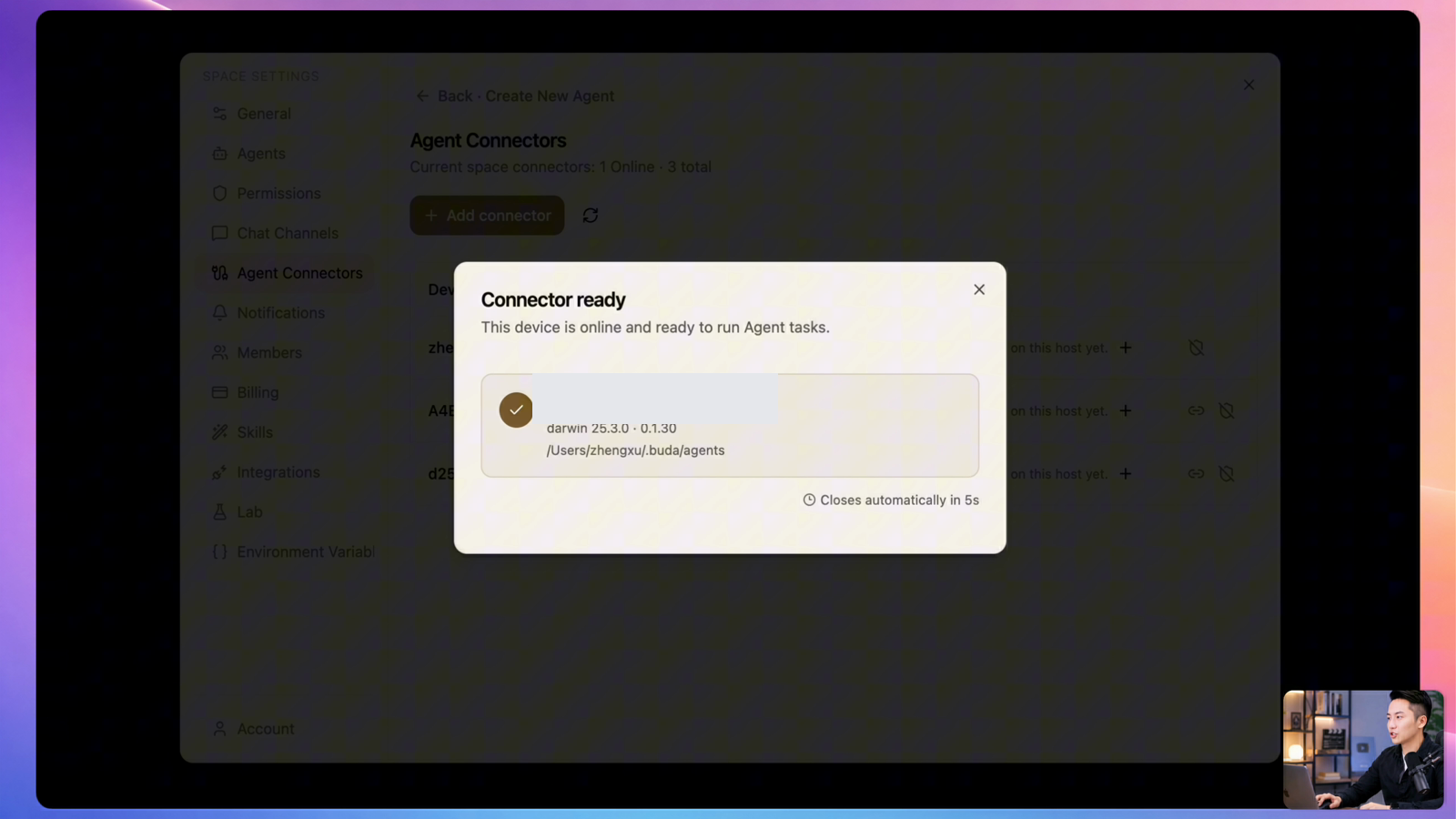
Create an Agent on the connected computer
Once Connector is ready, click Create agent on this device.
You can also create the Agent separately. Under Runtime, choose Local mode / remote host, then select the connected device.
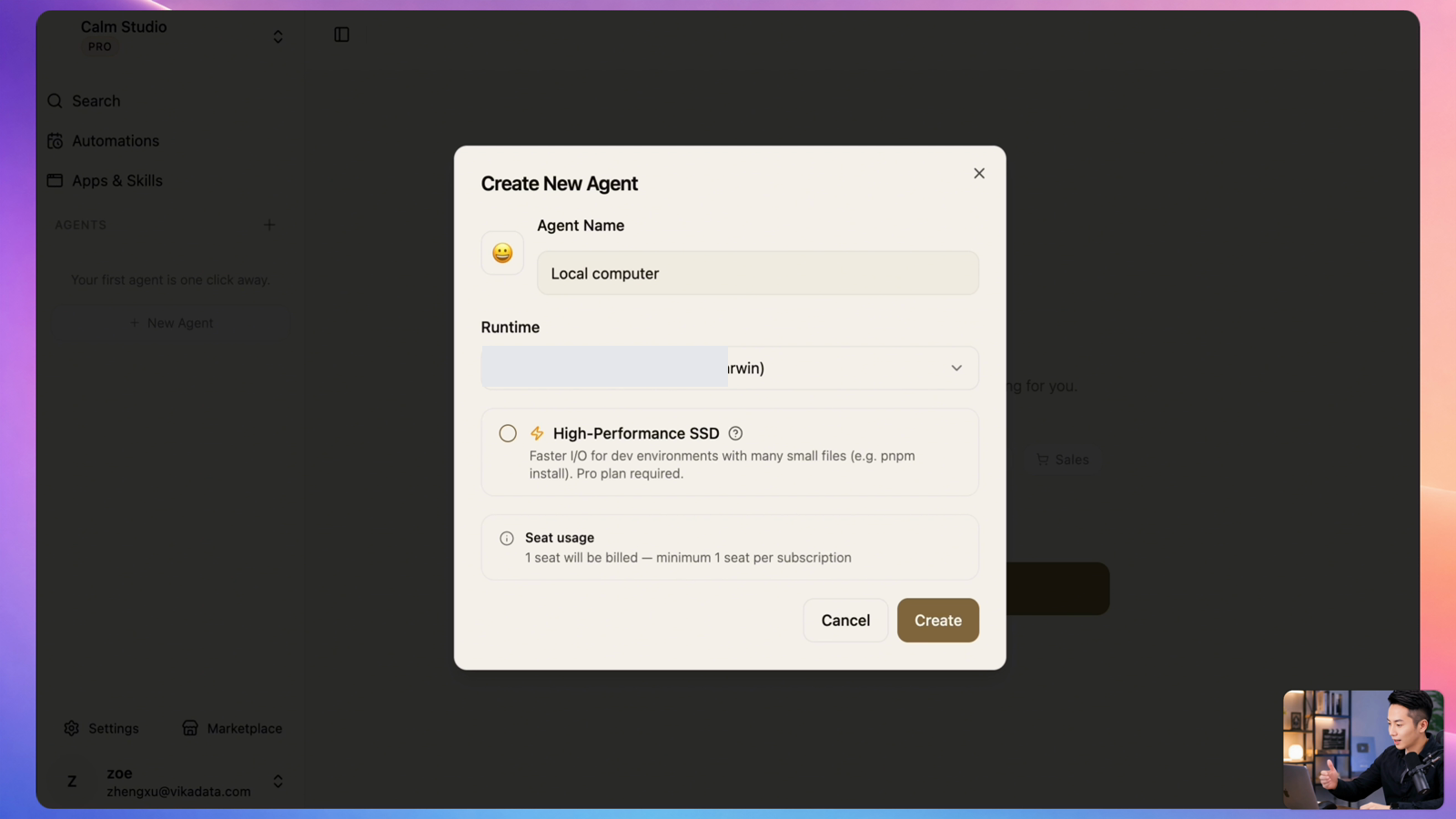
From that point on, you work with the Agent in the same way you would with a cloud Agent. Give it a task in Buda and review its progress in the conversation.
In the product demo, the Agent receives a simple request: create a file and read the computer's system information. Buda shows each tool call as it happens. The output is not a hypothetical command or a list of instructions. The Agent reads the machine and creates a real file in the working directory.
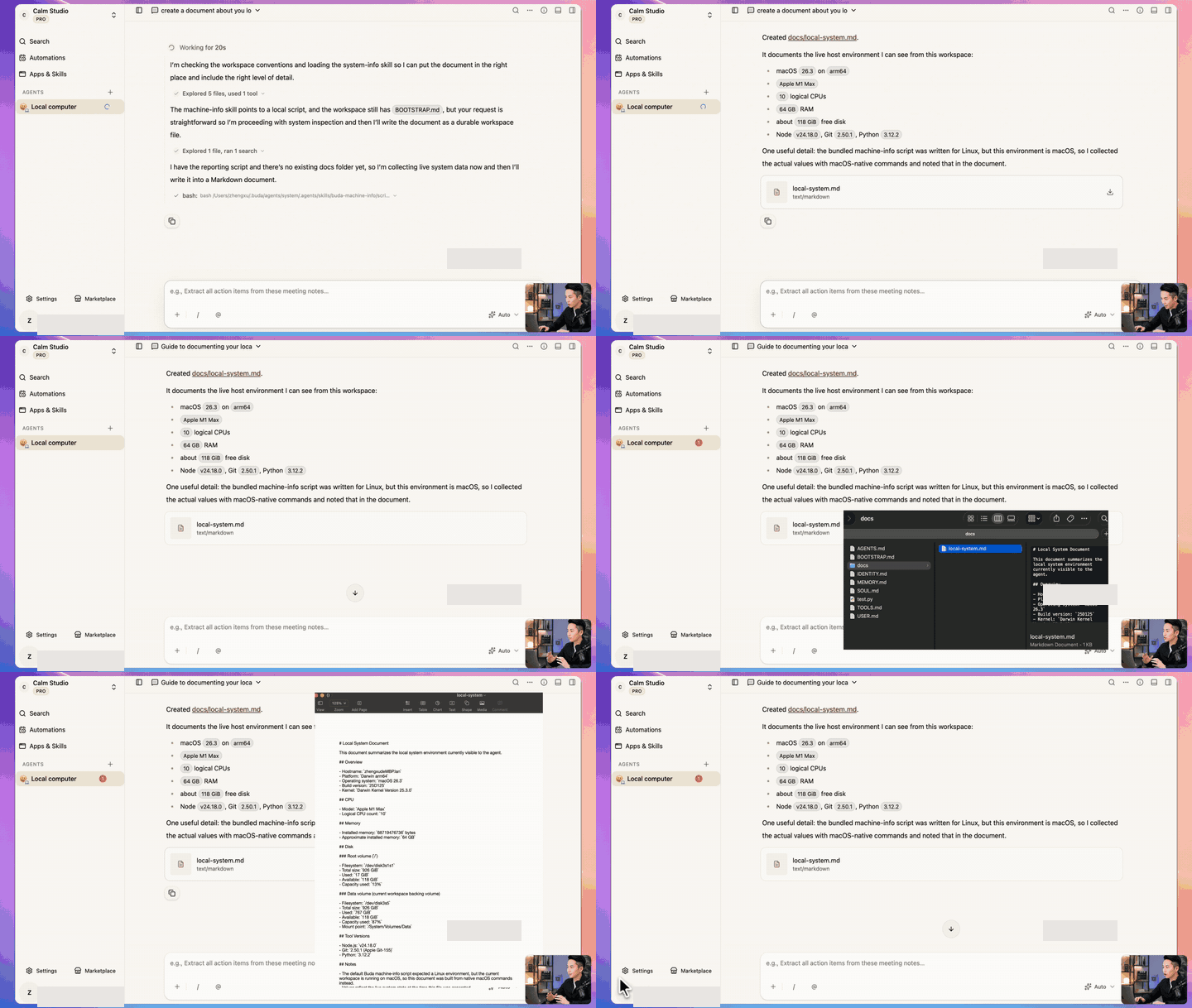
That distinction matters. A chatbot tells you how to perform a task. An Agent with the right runtime can perform it and leave behind a result you can inspect.
Use the environment you already have
Connector is useful when recreating the working environment in a cloud sandbox would be slow, impractical, or unnecessary.
Work inside an existing codebase
Let an Agent inspect a repository, run scripts, update files, and use the dependencies already installed for that project. There is no need to rebuild the entire setup before the Agent can begin.
Run tasks on a company server
Connect a machine that already hosts internal tools or scheduled workflows, then create an Agent specifically for work that belongs in that environment.
Process local files
Give an Agent access to the real directory where documents, datasets, exports, or media files are stored. Its output can remain alongside the source material instead of moving through a separate upload-and-download loop.
Use a real browser environment
When a supported browser is installed, the Agent can use browser tools from the connected computer. This is useful for workflows that depend on the machine's actual browser setup rather than a fresh remote session.
Turn successful work into a repeatable Skill
Once an Agent completes a workflow reliably in the connected environment, the method can be captured as a Skill. The next run starts from a proven process instead of a new set of instructions.
Visible while it works, removable when it is done
Local execution should not make Agent work harder to review.
Buda keeps the task conversation, tool calls, and progress visible in the Agent workspace. You can see what the Agent is doing while the result is being created on the connected machine.
The connection also has a clear operating boundary. If the computer sleeps, loses its network connection, or stops the Connector process, the device goes offline. Wake the computer and run the connection command again to restore it. If the machine is no longer needed, remove it from the Space.
This keeps the model simple: the computer is available only while you intentionally keep Connector running.
Start with one machine and one concrete task
You do not need to move every Agent to a local computer.
Cloud runtimes remain the right choice for work that does not depend on a particular machine. Use Connector when a task needs local files, installed software, an existing codebase, or a specific server environment.
A good first test is deliberately small:
- read system information
- summarize files in a chosen directory
- create a document inside an existing project
- run a familiar script and review the output
Watch the execution, inspect the result on the computer, and confirm that the boundary is right before expanding the workflow.
Buda Connector closes the distance between an Agent that knows what to do and the environment where the work can actually be done. It turns the computers and servers your team already has into execution resources that Agents can use deliberately, visibly, and only when needed.
Connect your first computer in Settings → Agent Connectors, then give an Agent one real task to finish in the environment where your work already lives.