XLSX Skill: keep formulas, cached values and recalculation intact
Check the workbook behind the preview before accepting an agent-edited spreadsheet.

An Excel preview can show a plausible total while the delivered workbook has lost its formulas. Another reader can show a blank cell even though the formula string still exists. Those two failures require different checks.
The XLSX Skill provides a procedure for creating, editing and checking spreadsheet files. Its upstream instructions distinguish formulas from cached values and make recalculation part of delivery. That distinction is more useful than accepting a screenshot as proof that a workbook works.
Install the procedure and identify the file
In Buda AI's Marketplace, search for XLSX and check the publisher and source before installation. Keep the original workbook in Drive and work on a separate output. Specify the sheets and input cells that may change, the formulas that must survive and the expected file type.
The upstream environment description is not a promise about every execution environment. Have the agent confirm the required Python packages and LibreOffice before choosing its editing path. Do not overwrite the only original while discovering missing dependencies.
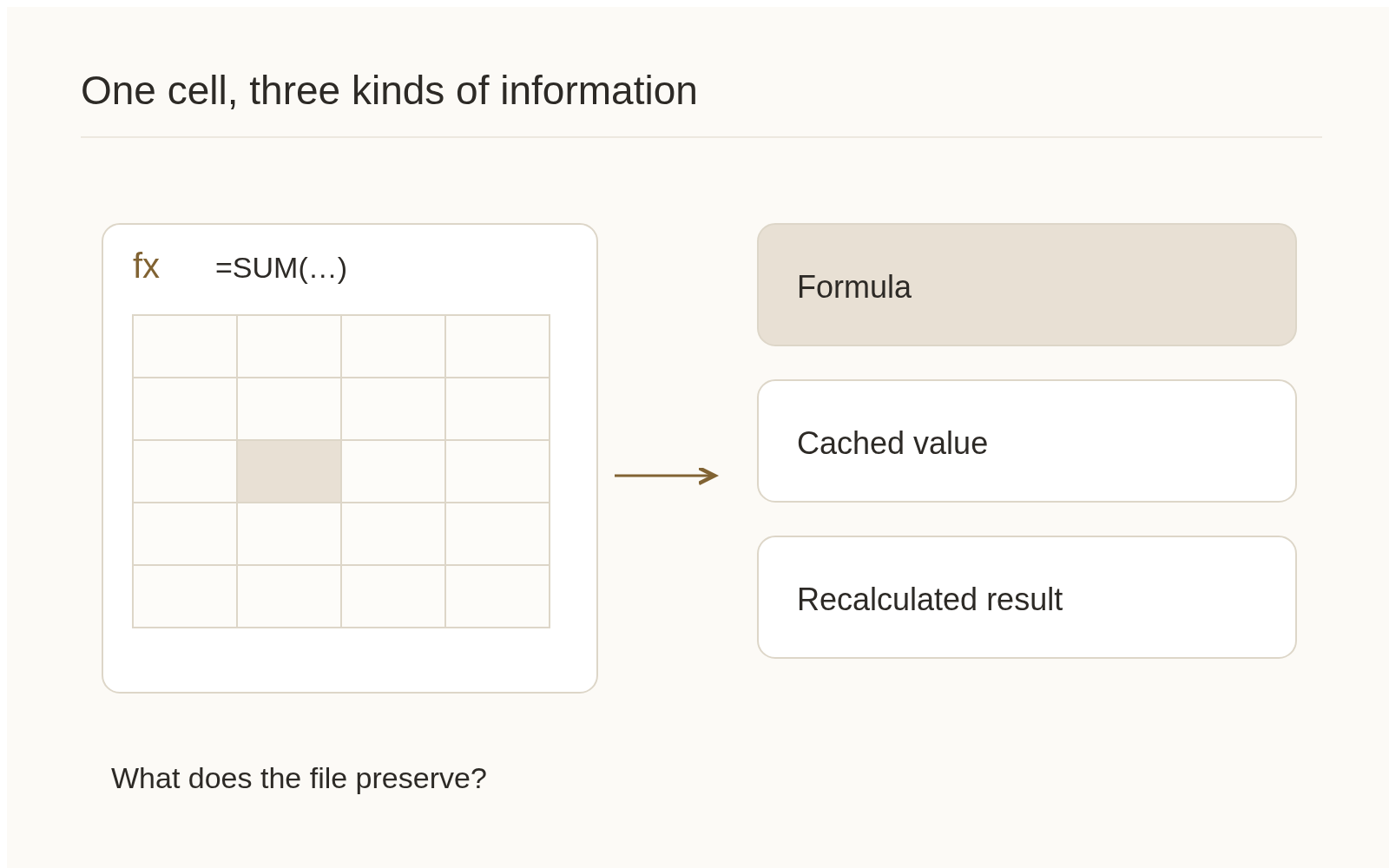
Read one workbook in two ways
With openpyxl, a default load reads formula strings; a second load using data_only=True reads the cached results stored in the file. Keep those views separate and compare the same cell coordinates.
Do not save the data-only workbook as the edited deliverable: it no longer contains the formulas. Saving it replaces formulas with literal values. Conversely, openpyxl writes formula strings but does not calculate them, so a newly saved workbook may lack cached results. A blank cache is not sufficient evidence that the formula is missing.
Make the smallest edit, then recalculate
For an existing workbook, preserve its conventions and write only to designated inputs. Use the formula-bearing load for edits. The upstream command python scripts/recalc.py output.xlsx runs LibreOffice, rewrites the file in place and returns JSON; run it on the output copy.
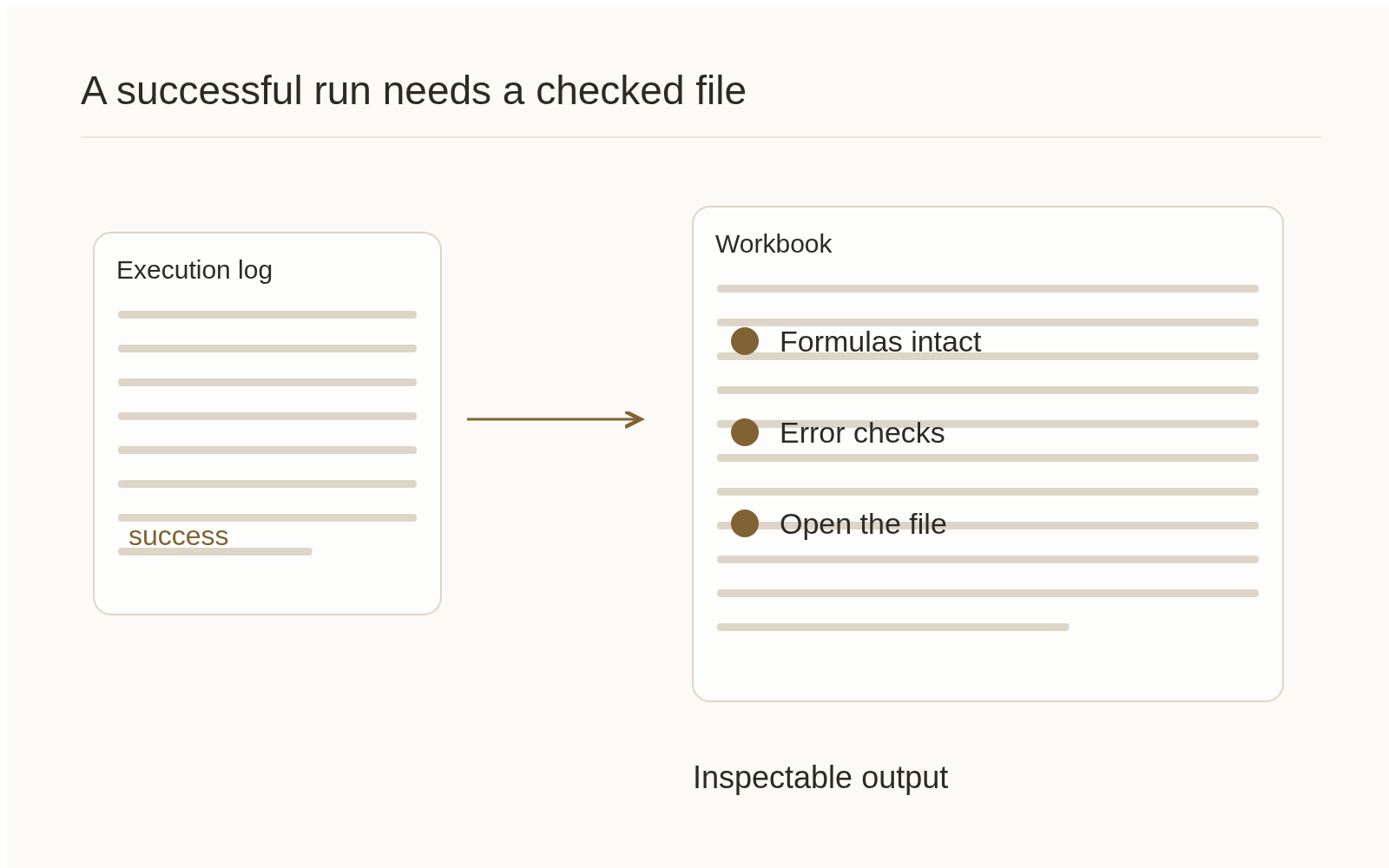
Read status, total_errors and error_summary. An errors_found result exits with code 0, so process success is not workbook success. An error key means recalculation did not complete. Fix the named problems and repeat before handing over the file.
Protect links and macro boundaries
External-file references depend on another workbook and its cached values. The upstream procedure warns that saving and recalculating with missing source files can destroy those links. Preserve the original and resolve that dependency before proceeding; forcing recalculation accepts a loss, not a repair.
For .xlsm, keep_vba=True is needed to retain macros when loading with openpyxl. This does not prove that macros execute correctly. Likewise, function support depends on the spreadsheet engine; a clean error count may still miss a truncated spilling-array result. Inspect the expected output range.
Accept a recalculable deliverable
A green recalculation says formulas evaluate, not that their references answer the business question. Check a small set of critical totals back to their inputs, inspect range endpoints and compare formula cells before and after. Separate inherited errors from new errors using the original workbook's cached view.
Ask the agent to return the edited file, the changed ranges, recalculation output and unresolved dependencies. Open the workbook in the application used for the handoff. Start from the XLSX Skill introduction with one existing workbook and a narrowly defined change; expand only after that file passes review.